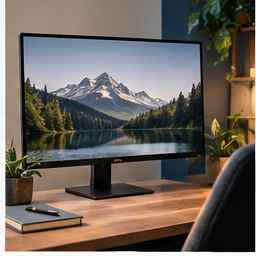
“I need a larger monitor” can mean four things: text is too small, letters look soft, a window reflects across the screen, or two applications will not fit. Those problems require different changes. Enlarging the panel alone does not guarantee larger readable text or a better arrangement.
Find your next step
Select the situation you recognize. This identifies a research route, not a compatibility approval.
Read the decision checks ↓Distinguish size from sharpness
Open a familiar document at your normal sitting position. If letters are crisp but small, enlarge the interface or document first. In Windows, choose the correct display under Settings > System > Display, then try the recommended scale. Keep the display at its recommended resolution where possible: Microsoft notes that lower resolutions can make text less sharp. Application zoom is useful when only one document needs larger text; system scaling changes the wider interface.
When one screen is clear and the other is not
Check each screen separately. A laptop and external monitor may need different scaling settings. If the external display cannot select its intended resolution, connect it directly using a suitable cable and supported laptop port. Record the resolution and refresh rate before and after removing the adapter. That comparison helps separate a panel problem from a connection limit. Do not purchase a sharper monitor while leaving the same constrained signal path unexamined.
Use a reflection test
Open a dark page and look for the reflected window or ceiling lamp. Temporarily turn the display or adjust the blind and reopen the original document. If the text becomes readable, position or lighting is the first variable to fix. Raising brightness to fight a reflection can create another unpleasant contrast with the room. Test at the time of day you normally work, not only in evening light.
Decide whether the real shortage is workspace
After text is readable, open the two applications you need together. If they no longer fit at a useful size, you have a meaningful screen-space requirement. Compare resolution and scaling together: more pixels can support either more detail or larger, sharper interface elements, depending on the setting. A larger panel with the same pixel count does not necessarily create more application workspace.
A buying brief with a measurable result
An example brief is “Keep the spreadsheet and source document visible together at my preferred text size, within the usable depth of this desk.” Measure available width, current viewing distance and the depth occupied by the stand. Compare display inputs with the laptop and hub. If an arm is proposed, its mounting checks are a separate step; screen size is not an arm compatibility test.
Keep the change through a full work session
Look at email, menus, spreadsheet cells and a video call. A setup can make one enlarged document pleasant while leaving the application controls awkward. Keep notes on the tasks that still fail. Buy a new panel only when its documented capabilities address those failures; choose a mounting change only when positioning is the remaining obstacle.
The decision at a glance
| Symptom | Try first | Possible purchase |
|---|---|---|
| Sharp but small | Scale or zoom | None if readability is restored |
| Wrong resolution | Direct connection and settings | Suitable cable or hub if the path is limiting |
| Insufficient space at readable size | Test side-by-side work | Display matched to the work and desk |
Buy a monitor for a remaining display limit, a hub for a verified connection limit, and an arm for a position limit.
Products for the relevant scenario
These are research candidates for the conditions above. Verify the exact variant and seller’s return terms before buying.

Dell S2722QC 27-inch 4K USB-C Monitor
Consider it for: A desk with enough depth for a 27-inch display and a laptop that can use the monitor’s documented USB-C connection.
Before buying: Confirm exact host video support, desk depth, text scaling preference and the current listing configuration.
Trade-off: A bigger panel does not solve glare, a cramped desk or an unsupported video path.
View product →
BenQ ScreenBar Plus Monitor Light
Consider it for: A monitor setup where tested lamp placement still leaves paper or keyboard work dim.
Before buying: Check monitor thickness, clip fit, power route and whether the light can avoid reflections in your screen.
Trade-off: It is not a substitute for controlling a bright window behind the display.
View product →Sources and evidence
Based on product documentation and the sources below; DeskWise has not hands-on tested these products. Examples describe possible setups, not measured outcomes.
Editorial update: Aug 21, 2026. Product images correspond to their linked retailer pages. Prices and stock are left to the seller’s page.