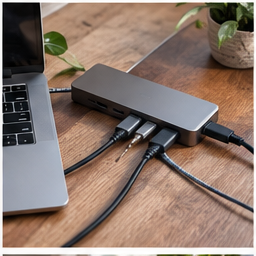
A dock full of ports can still leave you connecting the original charger or wondering why the second screen mirrors the first. “One cable” describes a working setup, not a connector shape. Start with the exact laptop model and the devices that must reconnect each morning.
Find your next step
Select the situation you recognize. This identifies a research route, not a compatibility approval.
Read the decision checks ↓Build an inventory that a product page can answer
Record the laptop model and operating system, charger rating, monitor models, target resolution and refresh rate, and each USB accessory. Include Ethernet or a memory card reader only if you use it. Distinguish always-connected equipment from a drive you plug in once a month. The goal is to remove a recurring connection ritual without buying capacity for an imaginary workstation.
USB-C is the starting point, not the compatibility verdict
A USB-C-shaped port does not by itself establish charging, video or data capabilities. Read the laptop specifications for the particular port you intend to use. A hub that relies on DisplayPort Alt Mode needs a host with the required video capability. Driver-based display solutions are a different category with installation and workload considerations; do not treat them as interchangeable with native video output.
Power in and power delivered are different numbers
A pass-through hub can consume some of the input power itself. For example, Anker lists up to 100 W input and 85 W laptop output for the 555 hub. Compare the host output with your laptop requirements, along with the charger and cable ratings. A charging symbol alone does not show that the laptop can sustain your normal workload without drawing down the battery.
Two HDMI sockets do not promise two independent desktops
Check whether the dock’s display diagram applies to your exact laptop, chip and operating system. Apple directs users to their Mac’s technical specifications for external-display limits. A working dual-display setup on a colleague’s Windows laptop is not evidence that the same arrangement works on your Mac. Write the desired extended displays and modes into the shopping brief, and reject listings that leave that combination ambiguous.
Run the acceptance test while the return window is open
Connect your normal webcam, input devices and external display. Check cold start, sleep and wake, unplugging and reconnecting, and a real call. Copy a noncritical test file to an external drive if that is part of your day, ejecting it properly afterward. Notice whether a screen disappears, a peripheral disconnects or the battery steadily drains. A setup that works only immediately after reboot is not the convenient routine you bought.
When a hub is enough
If you need one screen, keyboard and power, a compact hub may solve the task. The Anker 555 below is a single-HDMI research option, not a substitute for a verified multi-display docking station. If all you reconnect is a charger, keep the simpler cable. Spend for documented compatibility and the recurring task, not a larger port count.
The decision at a glance
| Requirement | Host fact | Accessory fact |
|---|---|---|
| Charging | Supports charging through this port | Actual host power output |
| External screens | Supported count and modes | Outputs supported on this OS |
| Webcam and storage | Available bandwidth and ports | Connections remain stable during normal use |
A one-cable setup is complete only when charging, display output and peripherals all work together through repeated reconnects.
Products for the relevant scenario
These are research candidates for the conditions above. Verify the exact variant and seller’s return terms before buying.
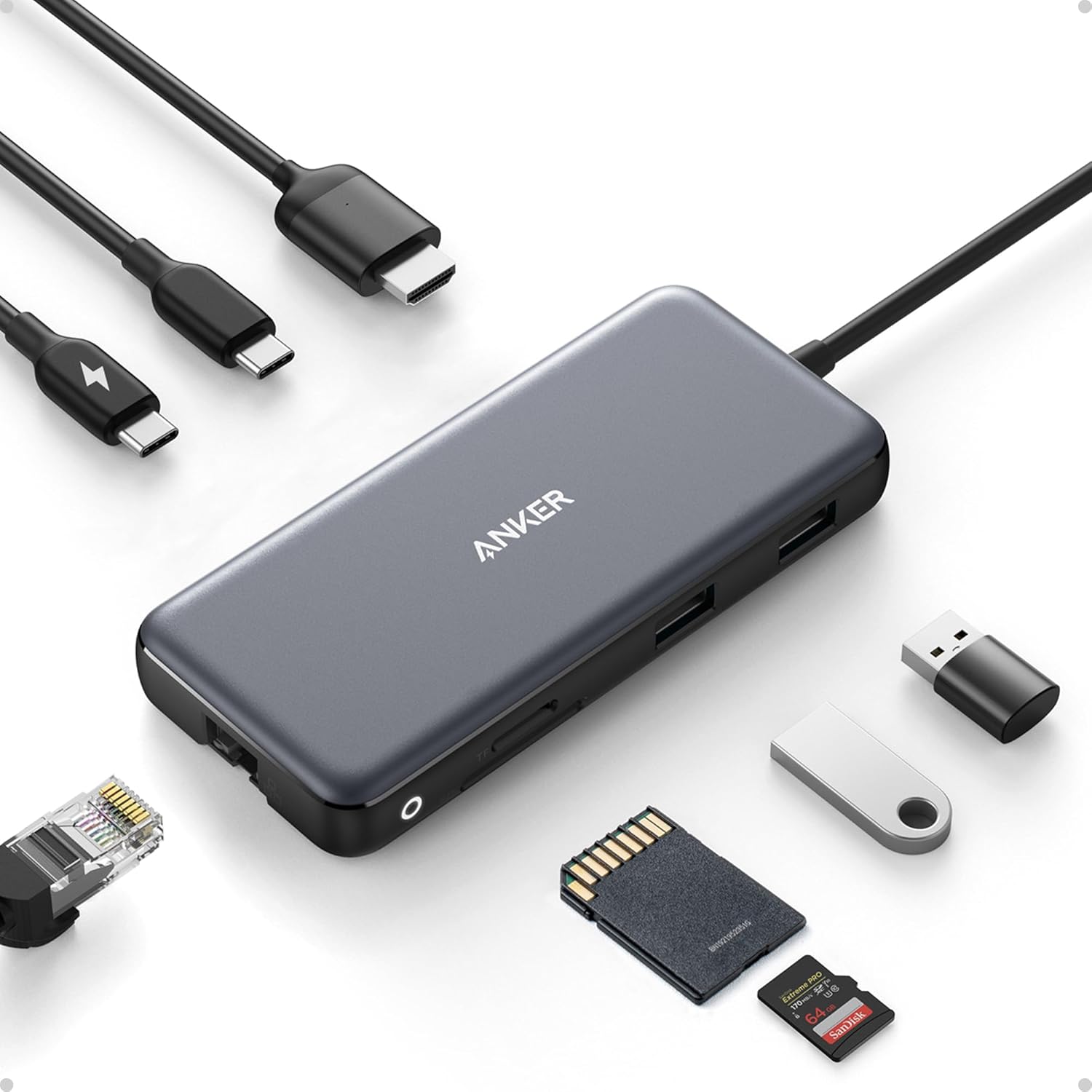
Anker 555 USB-C Hub
Consider it for: A single-display laptop setup with several daily connections.
Before buying: Confirm host video support, charger and host power requirements.
Trade-off: This is a hub, not a universal dual-display dock.
View product →
UGREEN 100W USB-C Cable 3-Pack
Consider it for: A setup with a documented USB-C connection need and a confirmed length, power and data requirement.
Before buying: Verify connector type, power requirement, data or video need, and the exact cable length before buying.
Trade-off: A charge-capable cable is not automatically a video-capable cable.
View product →Sources and evidence
Based on product documentation and the sources below; DeskWise has not hands-on tested these products. Examples describe possible setups, not measured outcomes.
Editorial update: Sep 11, 2026. Product images correspond to their linked retailer pages. Prices and stock are left to the seller’s page.